How to Install IPTV on Firestick (Step-by-Step Guide 2026)
Amazon Firestick has become one of the most popular streaming devices in the USA and Canada. Thanks to its affordability, portability, and powerful performance, millions of users rely on Fire TV Stick to stream live TV, sports, movies, and entertainment content through IPTV services.
If you’re new to IPTV, setting everything up may seem complicated at first. Fortunately, installing IPTV on Firestick is much easier than most people think. With the right IPTV player and subscription, you can start watching thousands of channels in just a few minutes.
In this complete guide, you’ll learn how to install IPTV on Firestick, configure IPTV apps, and optimize your streaming experience for the best performance.
What Is IPTV on Firestick?
Before starting the installation process, it’s important to understand how IPTV works on Firestick.
IPTV (Internet Protocol Television) delivers television content through an internet connection instead of traditional cable or satellite services. Combined with Amazon Firestick, IPTV allows users to access live TV channels, sports networks, movies, TV shows, and international content from a single device.
If you would like to learn more about IPTV technology and its benefits, read our complete guide:
Many IPTV users choose Firestick because it offers several advantages:
Affordable price
Easy installation process
Support for IPTV applications
HD, Full HD, and 4K streaming
Portable and travel-friendly design
Regular Amazon software updates
Whether you’re watching sports in the USA or international channels in Canada, Firestick provides a smooth and reliable streaming experience.
What You Need Before Installing IPTV
Before installing IPTV on Firestick, make sure you have:
Amazon Fire TV Stick
Stable internet connection
IPTV subscription
IPTV player application
Login credentials provided by your IPTV provider
Most IPTV services provide:
Username
Password
Server URL
You’ll need these details later during the setup process.
Step 1: Enable Apps from Unknown Sources
Most IPTV applications are not available directly through the Amazon App Store.
To install IPTV apps, you’ll first need to enable installation from unknown sources.
Follow these steps:
Open Firestick
SettingsSelect My Fire TV.
Open Developer Options.
Open AboutHighlight your FireStick device name.
Press the OK button 7 times on your remote until you see a message confirming that Developer Options have been enabled.
Go back and open Developer Options.
Select Install Unknown Apps.
Enable Downloader
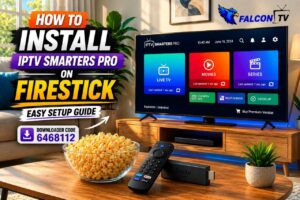
Once you’ve completed these steps, install the Downloader app from the Amazon Appstore, as we’ll use it to download and install IPTV Smarters Pro on your FireStick device.
mattis, pulvinar dapibus leo.
Step 2: Install Downloader
Downloader is the most popular application used to install IPTV apps on Firestick.
To install Downloader:
Go to the Firestick home screen.
Select Search.
Type “Downloader”.
Install the application.
Open Downloader.
You are now ready to install your IPTV player.
Step 3: Install IPTV Smarters Pro
IPTV Smarters Pro is one of the most widely used IPTV applications in the USA and Canada.
It offers:
Modern interface
Live TV support
Movies and series categories
EPG support
Multiple playlist management
For a complete installation tutorial, follow our dedicated guide:
Choosing a reliable provider is often more important than the application itself.
Common IPTV Problems and Solutions
Buffering Issues
Buffering is usually caused by:
Slow internet speed
Router issues
Temporary server congestion
Restarting your router and Firestick often resolves the issue.
Login Errors
Double-check:
Username
Password
Server URL
Even a small typing mistake can prevent successful login.
Channels Not Loading
Try:
Refreshing the playlist
Restarting the application
Rebooting Firestick
Most IPTV problems can be solved within a few minutes.
Final Thoughts
Installing IPTV on Firestick is a simple process that takes only a few minutes. By enabling unknown sources, installing a trusted IPTV player, and entering your subscription details, you’ll gain access to live TV, sports, movies, and entertainment from around the world.
If you’re looking for a premium IPTV service for Firestick users in the USA and Canada, visit Falcontv.nl today. Explore our IPTV packages, test the service with a free trial, and experience high-quality streaming on your Fire TV Stick.
We use cookies to ensure that we give you the best experience on our website. If you continue to use this site we will assume that you are happy with it.