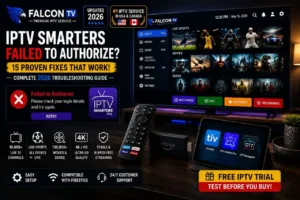
IPTV Smarters Failed to Authorize: 15 Proven Fixes for 2026
IPTV Smarters Failed to Authorize is one of the most frustrating messages you can encounter when trying to access an IPTV service. You may have a working internet connection, a compatible streaming device, and a valid account, yet the application still refuses to connect.
Fortunately, an authorization error does not automatically mean that your device is damaged or that your entire IPTV setup has stopped working. The problem can come from several different sources, including incorrect login information, an expired account, connection details, application data, device settings, compatibility problems, or a temporary issue with the service itself.
This guide explains the most common reasons behind IPTV Smarters Failed to Authorize and provides practical troubleshooting steps for users in the USA and Canada. The solutions cover FireStick, Android TV, Smart TV, iPhone, iPad, and Android devices where applicable.
The goal is to identify the cause instead of randomly reinstalling applications or changing settings. Start with the easiest solutions first, then continue through the more advanced checks if the error remains.
What Does IPTV Smarters Failed to Authorize Mean?
When you see IPTV Smarters Failed to Authorize, the application has generally been unable to verify the information required to connect to your IPTV service.
Authorization is different from simply having an internet connection.
Your device can be connected to Wi-Fi and browse websites normally while the IPTV application is still unable to authenticate your account.
Depending on the service and connection method, authorization may involve:
- Username
- Password
- Server address
- Playlist information
- Account status
- Device permissions
- Connection limits
If any of these elements is incorrect or unavailable, the application may display an authorization error.
This is why there is no single universal solution.
For one user, the problem may be a typing mistake. For another, the account may have expired. Someone else may have an outdated application or a temporary service-side issue.
The best approach is therefore to troubleshoot the problem systematically.
IPTV Smarters Failed to Authorize? Start With These Checks
Before changing anything complicated, check the basics.
| Problem | Possible Cause | Recommended Solution |
|---|---|---|
| Login never worked | Incorrect credentials | Re-enter account details |
| Login stopped suddenly | Account or service issue | Check subscription status |
| Other apps don’t work | Internet problem | Test your connection |
| App works elsewhere | Device problem | Check device compatibility |
| Error appeared after an update | App compatibility | Check for a newer version |
| Multiple users affected | Service outage | Contact provider |
| App keeps returning to login | Corrupted data | Clear cache or reinstall |
| Connection details fail | Incorrect server data | Confirm details with provider |
This simple process can help narrow down the problem before you spend time changing settings.
1. Check Your IPTV Username and Password
The first solution for IPTV Smarters Failed to Authorize is also one of the simplest.
Check your username and password carefully.
A single incorrect character can prevent authorization.
Look for:
- Extra spaces
- Missing numbers
- Incorrect letters
- Uppercase/lowercase mistakes
- Additional punctuation
- Copy-and-paste errors
If you copied the credentials from an email or message, try entering them manually.
Pay particular attention to spaces.
For example:
username123
is different from:
username123
The second example contains an extra space.
Do not change credentials randomly. Use the exact information supplied by your provider.
If the credentials still do not work, ask the provider to confirm that they are correct and currently active.
2. Check Whether Your Subscription Has Expired
If IPTV Smarters previously worked and suddenly started displaying an authorization error, check your account status.
An expired subscription can prevent a service from authenticating your device.
Think about:
- When you purchased the subscription
- When it was activated
- The original expiration date
- Whether you recently changed plans
- Whether a renewal payment was successful
If your account is no longer active, reinstalling the application will not normally solve the issue.
The application may be functioning correctly while the account itself is inactive.
If you use FalconTV, you can check the current service information and available options through the official USA page:
3. Test Your Internet Connection
A stable internet connection is essential for authorization.
Even if your device shows that it is connected to Wi-Fi, the connection may still be unstable.
Try opening:
- A normal website
- Another streaming application
- An application store
- A video service
If several applications fail, your internet connection may be responsible.
Try:
- Disconnecting Wi-Fi.
- Reconnecting.
- Restarting the device.
- Testing another application.
- Trying IPTV Smarters again.
If possible, temporarily test another trusted network.
For example, you could use a mobile hotspot.
If authorization works on another network, your original network may require further troubleshooting.
4. Restart Your Streaming Device
A device restart can resolve temporary software problems.
This applies to:
- FireStick
- Android TV
- Smart TV
- Android phones
- Tablets
- Other compatible devices
Restarting clears temporary system states and can allow applications to reconnect cleanly.
If the error appeared after the device had been running for a long time, this step is particularly worth trying.
After restarting, wait until the device has completely finished loading before opening IPTV Smarters.
5. Restart Your Router
If other applications are also experiencing connectivity problems, restart your router.
A simple procedure is:
- Turn off or unplug the router.
- Wait around 30 seconds.
- Turn it back on.
- Wait for the internet connection to return.
- Test another application.
- Open IPTV Smarters.
If the internet connection remains unstable after restarting the router, contact your internet service provider.
Do not assume that every authorization error originates from IPTV Smarters.
6. Verify the Server or Playlist Information
epending on the service you use, IPTV Smarters may require specific connection information.
If the server address or playlist information is incorrect, the application may not be able to authenticate.
Check the original information provided by your IPTV provider.
Make sure there are:
- No missing characters
- No extra spaces
- No accidental punctuation
- No incorrect URL
- No unnecessary changes
If you are unsure whether the connection information is correct, contact your provider and ask them to confirm it.
IPTV Smarters Failed to Authorize on FireStick
FireStick users may encounter authorization problems for different reasons.
Start with the basic checks:
- Verify the internet connection.
- Restart the FireStick.
- Check your account information.
- Confirm your subscription is active.
- Verify connection information.
- Check application compatibility.
- Check whether an official application update is available.
Amazon provides official Fire TV documentation covering the platform and supported development environment. Amazon Fire TV documentation
Because Fire TV devices and software versions can change, always verify that the application you are using is compatible with your current device.
Avoid downloading unofficial applications from suspicious websites simply because they claim to fix authorization errors.
IPTV Smarters Failed to Authorize on Android TV
Android TV users can follow a similar troubleshooting process.
Start by checking the account information.
Then:
- Test another application.
- Restart Android TV.
- Verify the internet connection.
- Check the IPTV application.
- Clear temporary cache data if available.
- Re-enter your account information.
- Check compatibility.
- Contact the provider if the problem remains.
Google provides official information about Google TV and its television ecosystem. Google TV
The exact menu names can differ depending on the manufacturer and device version.
IPTV Smarters Failed to Authorize on Samsung Smart TV
Smart TV troubleshooting can be slightly different because each manufacturer may use its own operating system and application ecosystem.
If you’re seeing IPTV Smarters Failed to Authorize on a Samsung television, start with the network.
Open another application on the TV.
If other applications work, check the IPTV application and account.
If multiple applications are failing, restart the television and check its network connection.
Also verify that the application is currently supported on your specific television model and region.
Do not assume that an application available on one Smart TV model will automatically work on another.
7. Clear the IPTV Application Cache
Cached data can occasionally cause application problems.
If your device provides a cache option, clearing temporary cache data can be useful.
On compatible Android-based devices, you may find an option similar to:
Settings → Apps → IPTV Smarters → Storage → Clear Cache
The exact menu depends on the device.
Start with Clear Cache rather than immediately clearing all application data.
Clearing application data can remove saved information and require you to configure the application again.
After clearing the cache, restart IPTV Smarters and test the connection.
8. Update the Application
An outdated application can develop compatibility problems as operating systems and services change.
Check whether a legitimate update is available through the appropriate application source.
Updates can sometimes address:
- Login issues
- Authentication problems
- Compatibility errors
- Playback problems
- Application crashes
- Performance issues
Do not download modified or unofficial versions simply because they promise to remove an authorization error.
Use trustworthy application sources.
9. Check Your Device's Date and Time
Incorrect date and time settings can sometimes interfere with secure network connections.
Check the device settings and enable automatic date and time if available.
You may find an option similar to:
Settings → Date & Time → Automatic Date & Time
The exact location varies by device.
After correcting the time, restart the application.
This is a quick check and can eliminate an unexpected source of connection problems.
10. Try Another Internet Connection
Testing another network can help identify whether the problem is related to your home connection.
If you have a compatible device, temporarily connect it to another trusted network.
If it works on the second network
The issue may be related to:
- Your router
- Local network configuration
- DNS
- ISP connectivity
- Wi-Fi instability
If it fails everywhere
The problem may be related to:
- Account credentials
- Subscription status
- Server information
- Application
- Provider-side service
This simple test can save a lot of troubleshooting time.
11. Check for a Temporary Service Outage
Sometimes everything on your side is working correctly.
The service itself may temporarily experience:
- Maintenance
- Server problems
- Authentication issues
- Technical downtime
If the application worked normally yesterday but suddenly stopped for multiple users, there may be a service-side problem.
Contact your provider and ask whether there is a current technical issue.
12. Contact Your IPTV Provider
If the basic troubleshooting steps have not worked, contact your provider.
Give them specific information.
For example:
“I am using IPTV Smarters on an Android TV device. The application displays ‘Failed to Authorize.’ My internet connection is working normally and the subscription should still be active.”
Useful information includes:
- Device type
- Application name
- Exact error message
- Approximate time the issue started
- Whether other applications work
- Whether the device was restarted
- Whether the account is active
This allows support to investigate your account and connection more efficiently.
13. Check Device or Connection Limits
Some IPTV services may limit how many devices can use an account or how many connections can be active simultaneously.
If you recently added another device, check the terms of your subscription.
Possible restrictions may include:
- Number of supported devices
- Simultaneous connections
- Account sharing
- Device registration
Do not assume that a single subscription automatically allows unlimited simultaneous connections.
Ask your provider if you’re unsure.
14. Reinstall IPTV Smarters
If the application itself appears corrupted, reinstalling it may help.
Before doing this, make sure you have your account information available.
Then:
- Remove the application.
- Restart your device.
- Install the legitimate current version.
- Enter your account details.
- Test the connection.
Reinstallation can help with corrupted application files.
However, it will not fix an expired account or incorrect server information.
15. Test the Service on Another Supported Device
Testing another compatible device is one of the best ways to determine where the problem is located.
For example, if IPTV Smarters fails on your Smart TV, test the service on another compatible device if your subscription allows it.
If it works on the second device
The original device or application may be responsible.
If it fails on both devices
The issue may be related to the account, server, subscription, or service.
This comparison gives you useful information before contacting support.
IPTV Smarters Failed to Authorize: Troubleshooting Checklist
Use this checklist before contacting support:
| Check | Done? |
|---|---|
| Username verified | ☐ |
| Password verified | ☐ |
| Subscription checked | ☐ |
| Internet tested | ☐ |
| Device restarted | ☐ |
| Router restarted | ☐ |
| Server information checked | ☐ |
| Application updated | ☐ |
| Cache cleared | ☐ |
| Date and time checked | ☐ |
| Another network tested | ☐ |
| Provider contacted | ☐ |
If you have completed the list and the problem remains, you have already gathered useful information for technical support.
How to Prevent IPTV Smarters Authorization Problems
You cannot prevent every technical problem, but good maintenance can reduce unnecessary issues.
Keep Your Account Information Safe
Store your credentials somewhere secure.
Avoid repeatedly copying information from different messages where characters may be accidentally changed.
Keep Your Device Updated
Install legitimate operating system updates when available.
Keep Your Application Updated
Use the current supported version of your application.
Maintain a Stable Network
If your streaming device regularly loses connectivity, investigate the Wi-Fi or network problem instead of repeatedly reinstalling the application.
Check Subscription Dates
Keep track of when your subscription expires.
This can prevent confusion when an account suddenly stops working.
Use Supported Devices
Before purchasing a subscription, verify that your device is compatible.
How to Choose a Reliable IPTV Service
Why Consider FalconTV?
FalconTV provides information and support for customers interested in IPTV streaming on compatible devices.
For viewers in the USA and Canada, the FalconTV USA page provides access to current service information and available subscription options.
Depending on the current plan and service availability, FalconTV highlights features such as:
- Large channel selection
- Live programming
- Sports content where legally available
- Movies and TV series
- HD and 4K streaming where supported
- Fast activation
- Customer assistance
- FireStick compatibility
- Android TV compatibility
- Supported Smart TV environments
If you are experiencing an authorization problem, support can also help determine whether the issue is related to your account, setup, or supported application.
Visit the official FalconTV USA page for current information:
Always review the latest service information and terms before subscribing.
Get Help With IPTV App Installation
If you repeatedly experience authorization problems, the application may not always be the real issue.
When evaluating an IPTV provider, consider:
Transparent Service Information
A provider should clearly explain what it offers and how customers can receive support.
Device Compatibility
Check whether your FireStick, Android TV, Smart TV, or mobile device is supported.
Customer Support
Look for a clear way to contact support when setup or account problems occur.
Trial Availability
If a legitimate trial is available, it can allow you to test compatibility before committing to a longer plan.
Clear Subscription Terms
Read the current pricing, renewal, refund, and trial conditions before paying.
Content Rights
Choose providers that are transparent about their programming and have the appropriate rights to distribute the content they offer.
One common reason new IPTV users experience problems is incorrect application setup.
Different devices require different installation and configuration processes.
For example, FireStick, Android TV, Smart TV, iPhone, iPad, and Android phones can have completely different application environments.
FalconTV can provide setup assistance for supported configurations, helping customers understand the basic steps required to configure their service.
The website can also contain installation guides and tutorials that explain how to set up supported IPTV applications.
This is particularly useful if you’re not familiar with playlist information, account credentials, application settings, or device configuration.
Instead of changing random settings, follow a step-by-step guide appropriate for your specific device.
When Should You Contact Support?
You should consider contacting your provider when:
- Your credentials are correct.
- Your subscription is active.
- Your internet works normally.
- You restarted the device.
- You checked the connection information.
- You tested the application again.
- The authorization error continues.
At this stage, additional random changes may not help.
Your provider may need to verify the account or service from its side.
Give support the exact error message rather than simply saying that the application is not working.
Frequently Asked Questions
What does IPTV Smarters Failed to Authorize mean?
It usually means the application could not successfully verify the information required to connect to the IPTV service. The cause can be credentials, account status, connection information, application problems, or a service-side issue.
Why is IPTV Smarters suddenly not working?
If it previously worked, check your subscription status, internet connection, application version, account information, and whether the service is experiencing temporary technical problems.
How do I fix Failed to Authorize IPTV Smarters?
Start by verifying your username and password, checking your subscription, testing your internet, restarting the device, checking connection information, and contacting your provider if the problem continues.
Can an expired subscription cause the authorization error?
Yes. If the service requires an active subscription, an expired account may prevent authorization.
Can bad Wi-Fi cause Failed to Authorize?
A poor or unstable connection can prevent an application from communicating correctly with a service. Testing another network can help determine whether connectivity is involved.
Why does IPTV Smarters work on one device but not another?
The devices may use different operating systems, application versions, or configurations. Check compatibility and compare the settings on both devices.
Can clearing the cache fix IPTV Smarters?
It can help if temporary application data has become corrupted or outdated. Start with clearing the cache rather than deleting all application data.
Should I reinstall IPTV Smarters?
Reinstallation can help when application files are corrupted, but it will not normally solve an expired account or incorrect credentials.
Can I use IPTV Smarters on FireStick?
Compatibility depends on the application version, Fire TV device, service, and current platform availability. Always verify current compatibility and use legitimate application sources.
Can IPTV Smarters work on Android TV?
Compatible IPTV applications can operate on supported Android TV environments. Exact compatibility depends on the device and application.
What should I do if nothing fixes the error?
If your internet works, your credentials are correct, your subscription is active, and the error continues across supported devices, contact your IPTV provider and provide the exact error message and device information.
Is an IPTV FREE TRIAL useful for testing?
A legitimate IPTV FREE TRIAL can help users evaluate compatibility, streaming performance, available programming, and customer support before committing to a longer subscription.
Final Troubleshooting Summary
When you see IPTV Smarters Failed to Authorize, don’t immediately assume that your FireStick, Smart TV, or IPTV application is broken.
Start with the simplest checks:
- Verify your username.
- Verify your password.
- Check your subscription.
- Test your internet connection.
- Restart your device.
- Restart your router.
- Verify server or playlist information.
- Clear temporary application data.
- Check for an application update.
- Check your device’s date and time.
- Test another network.
- Check for a service outage.
- Verify device limitations.
- Reinstall the application if necessary.
- Contact your provider if the issue remains.
This process helps separate account problems from application, device, network, and provider-side problems.
Conclusion
IPTV Smarters Failed to Authorize can happen for many different reasons, but the error does not necessarily mean that your device or application is permanently broken. In many situations, the cause is something simple such as incorrect credentials, an expired subscription, an unstable connection, incorrect connection information, or temporary application data.
Users in the USA and Canada can work through the troubleshooting steps in this guide before making major changes to their streaming setup. Checking the account, network, device, application, and service one at a time makes it much easier to identify the real cause.
If you are still unable to connect after completing the troubleshooting checklist, contacting your IPTV provider is the best next step. Provide the exact error message, your device type, and the steps you’ve already tried.
For customers interested in FalconTV, you can visit the official USA page to review the current service information, supported-device options, subscription details, and any available IPTV FREE TRIAL.
Having IPTV Smarters authorization problems or looking for a reliable IPTV service in the USA or Canada? Visit FalconTV USA, review the current options, check device compatibility, and contact support if you need assistance with your setup.
FalconTV USA:
https://falcontv.nl/USA/