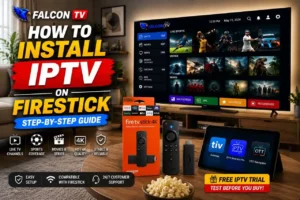
How to Install IPTV on FireStick in 2026: The Ultimate Step-by-Step Guide
If you want to learn how to install IPTV on FireStick, you are in the right place. Amazon FireStick is one of the most popular streaming devices because it can turn almost any compatible TV into a smart entertainment system.
With the right IPTV player and a valid IPTV subscription, you can access live television, movies, TV series, sports, and other content through an internet connection. However, installing IPTV on FireStick can be confusing if you have never installed an application outside the Amazon Appstore.
In this complete 2026 guide, we will walk you through the process from beginning to end. You will learn how to prepare your FireStick, install Downloader, install an IPTV player, add your IPTV subscription using Xtream Codes or an M3U playlist, and troubleshoot common problems such as buffering, missing channels, and playlists that do not load.
Important: IPTV is a technology used to deliver television and video over the internet. Always use IPTV services and content that you are legally authorized to access in your location.
What Is IPTV and How Does It Work?
IPTV stands for Internet Protocol Television. Unlike traditional cable or satellite television, IPTV delivers television content through an internet connection.
Instead of receiving a television signal through a cable line, satellite dish, or antenna, an IPTV application connects to a server and retrieves the available content over the internet.
Depending on the service you use, an IPTV subscription may provide access to categories such as:
Live TV channels
Movies
TV series
Video on Demand (VOD)
Sports channels
International television
News channels
Entertainment channels
The FireStick itself does not automatically provide IPTV channels. You normally need an IPTV player application and a legitimate subscription or playlist that you are authorized to use.
What Does IPTV Mean?
IPTV simply refers to television or video content delivered using an internet connection.
The technology can be used on many different devices, including FireStick, Android TV, smartphones, tablets, computers, and compatible smart TVs.
An IPTV player is an application that displays the content supplied by your IPTV service.
How IPTV Works on a FireStick
The basic process is simple:
Internet connection → IPTV service → IPTV player → FireStick → TV
Your IPTV provider gives you login information or a playlist. You then enter those details into a compatible IPTV player installed on your FireStick.
Once the information is accepted, the application can load the channels and other content available through your subscription.
What You Need Before Installing IPTV
Before you begin, make sure you have:
An Amazon FireStick or compatible Fire TV device
A working internet connection
A TV with an available HDMI port
An IPTV player
Valid IPTV login information or an authorized playlist
The Downloader application if your chosen app needs to be sideloaded
Having everything ready makes the installation process much easier.
Can You Install IPTV on Any FireStick?
In most cases, compatible Fire TV and FireStick devices can run IPTV player applications. However, the exact installation process can vary depending on your Fire TV software version and the application you want to use.
Compatible FireStick Devices
Many popular Fire TV devices can be used with IPTV players, including different generations of FireStick and Fire TV hardware. Before installing an application, check that the app is compatible with your device and operating system.
Internet Speed Requirements
Your internet connection is one of the most important factors when using IPTV.
A slow or unstable connection can result in:
Buffering
Freezing
Long loading times
Channels disconnecting
Poor video quality
For a better streaming experience, use a stable broadband connection whenever possible.
Why a Stable Internet Connection Matters
Even if your FireStick is working perfectly, an unstable Wi-Fi connection can affect streaming performance. If possible, place your FireStick within good range of your router. You can also consider using an Ethernet adapter if your setup supports a wired connection.
How to Prepare Your FireStick for IPTV Installation
Before installing an IPTV player, you may need to change a setting that allows applications to be installed from sources other than the Amazon Appstore. The exact names of these options can vary slightly between Fire TV software versions.
Step 1: Open FireStick Settings
From the FireStick home screen:
Turn on your FireStick.
Go to the Settings menu.
Look for My Fire TV, Device & Software, or a similar option.
Open the available developer-related settings.
The menu names can change with Fire TV updates, so don’t worry if your screen looks slightly different.
Step 2: Enable Developer Options
Open Developer Options if it is available.
On some newer Fire TV versions, you may need to select About and choose your Fire TV device several times before Developer Options become visible.
Step 3: Allow Apps From Unknown Sources
Depending on your Fire TV version, look for an option such as Install Unknown Apps.
Select the application you plan to use for downloading the IPTV player and allow it to install applications when required.
Only install applications from sources you trust.
How to Install Downloader on FireStick
Downloader is a commonly used utility for accessing and installing applications that are not available directly through the Amazon Appstore
Step 1: Find Downloader
From your FireStick home screen:
Select the search icon.
Type Downloader.
Select the official Downloader application.
Choose Get or Download.
Wait until the installation finishes.
Step 2: Open Downloader
Once Downloader has been installed:
Open the application.
Give the required permissions if requested.
Follow the initial setup instructions.
You will see a field where you can enter a website address.
You can then use Downloader to access the official download source for your chosen IPTV application.
How to Install IPTV on FireStick Using Downloader
Now we can move to the main part of this guide: how to install IPTV on FireStick.
The exact download address depends on the IPTV player you want to use.
Always obtain the application from a legitimate and trusted source
Step 1: Open Downloader
Launch Downloader from your FireStick applications. You should see a URL or search field on the main screen.
Step 2: Enter the App Download Address
Enter the official download address for the IPTV player you want to install. Double-check the address before continuing. Avoid downloading random APK files from unknown websites because unofficial files can create security risks.
Step 3: Download the IPTV App
Once Downloader reaches the correct source, follow the instructions to download the application. Depending on the application, the file may be downloaded automatically.
Step 4: Install the Application
After the download completes:
Select Install.
Wait for the installation process.
Select Done when finished.
You can then open the application
Step 5: Delete the APK File
After installation, Downloader may ask whether you want to delete the downloaded APK file. If you no longer need it, deleting the installation file can free up storage space on your FireStick.
Best IPTV Apps for FireStick
There are several IPTV player applications available for compatible Fire TV devices. The best option depends on the device you have, the interface you prefer, and the type of playlist or login information provided by your IPTV service.
TiviMate
TiviMate is a popular IPTV player designed primarily for television devices.
It provides features designed for navigating live TV playlists and organizing channels.
If you want a dedicated guide for this application, see our article:
That guide explains the TiviMate installation and setup process in greater detail.
IPTV Smarters Pro
IPTV Smarters Pro is another application commonly used to organize IPTV content. Depending on the version and platform, it can support different login methods and content categories. The exact features available can change when the application is updated.
IBO Player Pro
IBO Player Pro is another IPTV media player that can be used on compatible devices. It is important to remember that IPTV players generally do not provide television channels themselves. They are tools used to display content from a compatible source.
Other IPTV Players
Other applications may also be available depending on your FireStick model and region. Before installing an application, verify its source, compatibility, privacy information, and licensing
How to Add Your IPTV Subscription to a FireStick App
Once you install an IPTV player, the next step is usually connecting it to your authorized IPTV subscription.
Most services provide one of two common methods:
Xtream Codes API
M3U playlist
Using Xtream Codes API
If your provider supports Xtream Codes, you will normally receive:
Server URL
Username
Password
Open the IPTV application and select the option for Xtream Codes or a similar login method.
Enter the information exactly as provided.
Pay close attention to:
Capital letters
Numbers
Special characters
Server address
Spaces
A single incorrect character can prevent the playlist from loading
Using an M3U Playlist
Some IPTV services provide an M3U playlist URL instead. An M3U playlist contains information that allows a compatible media player to retrieve the available channels and content. Copy the complete URL and paste it into the appropriate field in your IPTV application.
Which IPTV Login Method Should You Choose?
If your provider gives you Xtream Codes information, this is often a convenient option because you usually only need to enter three pieces of information. If your provider specifically gives you an M3U URL, use the M3U option supported by your application. The most important thing is to use the login method supplied by your provider.
How to Set Up IPTV After Installation
Installing the application is only the first part of the process. After connecting your playlist, you may need to wait while the application downloads the available categories.
Enter Your Username and Password
Enter your credentials carefully. Do not add extra spaces before or after the information.
Enter the Server URL
Your provider may give you a server address. Copy it exactly as provided. If the application says the server cannot be reached, verify the URL and check your internet connection.
Wait for the Playlist to Load
Large playlists can take some time to load. Avoid repeatedly closing and reopening the application while the playlist is still loading.
Organize Channels and Categories
After loading your playlist, you may see different categories.
For example:
Live TV
Movies
Series
Sports
News
Kids
International channels
The available categories depend entirely on the content supplied by your IPTV service.
Add Channels to Favorites
If your IPTV application supports favorites, you can add frequently watched channels to make navigation faster. This is especially useful when a playlist contains thousands of channels.
How to Watch Live TV on FireStick With IPTV
Once your playlist has successfully loaded, select the Live TV section of your IPTV application. You can browse categories and select a channel to start streaming. Some IPTV players also provide an electronic program guide, commonly known as an EPG. An EPG can show program information when the IPTV service provides compatible guide data
Live TV Channels
Select the Live TV category and browse the available groups. Depending on your service, channels may be organized by country, language, genre, or other categories.
Movies and VOD
If your subscription includes Video on Demand, you may see a Movies or VOD section. You can browse available titles and select one to play
TV Series
Some services also organize television series separately. The layout depends on the IPTV player and the playlist provided by your service.
Sports and Other Categories
Sports and other categories may also appear when included by the content provider. Availability varies between services and subscriptions.
How to Improve IPTV Performance on FireStick
Even after you successfully install IPTV on FireStick, performance depends on several factors.
Check Your Internet Connection
Run a speed test on another device connected to the same network. If other streaming services are also slow, the problem may be related to your internet connection rather than the IPTV application.
Restart Your FireStick
A simple restart can resolve temporary application or memory problems. Restart the FireStick and wait until it completely loads before opening the IPTV application again.
Restart Your Router
Turn off your router for a few minutes and then turn it back on. After the internet connection returns, reconnect your FireStick and test the application again.
Use Ethernet When Possible
Wi-Fi can be affected by distance, walls, interference, and network congestion. A wired Ethernet connection can provide a more consistent connection when supported by your equipment.
Keep Your IPTV App Updated
If an official update is available, installing it can sometimes resolve bugs and compatibility issues. Only update applications through trusted sources.
Clear the App Cache
If an IPTV application becomes slow or behaves unexpectedly, clearing its cache can sometimes help. Go to your FireStick application settings, select the IPTV application, and look for the option to clear its cache.
Common IPTV Problems on FireStick
Even when the installation is correct, you may occasionally experience problems. Here are some of the most common issues and solutions..
IPTV App Is Not Loading
First, completely close the application and reopen it. If that doesn’t help, restart your FireStick. You should also verify that your internet connection is working normally.
IPTV Playlist Is Not Updating
If new channels or categories do not appear, close the application completely and reopen it. If the problem continues, check whether your subscription is still active and whether your provider has made any playlist changes.
Channels Are Buffering
Buffering can have several causes.
Check:
Internet speed
Wi-Fi signal
Router performance
FireStick storage
Application cache
Server availability
Testing another channel can also help determine whether the problem affects the entire playlist or only a specific stream.
Some Channels Are Missing
Not every channel is necessarily available at all times. Content can change, channels can move between categories, and providers may update their playlists. If a specific channel is missing, contact your IPTV provider for clarification
Login Details Are Not Working
Double-check your username, password, and server URL. Do not manually type long credentials if you can copy and paste them accurately.
IPTV App Keeps Crashing
Try restarting the FireStick and clearing the application’s cache. If the problem continues, check whether the application has an updated version or whether another compatible player works better on your device.
How to Fix IPTV Buffering on FireStick
Buffering is one of the most common complaints when streaming IPTV.
Before assuming that the IPTV service is the problem, test your internet connection.
Try these steps:
Restart your FireStick.
Restart your router.
Test your internet connection.
Move your FireStick closer to the router if possible.
Close applications running in the background.
Clear the IPTV application’s cache.
Try another channel.
Test another compatible IPTV player.
Check whether other streaming services are buffering.
Contact your provider if the problem continues.
If only one channel buffers while other channels work normally, the issue may be related to that particular stream.
If every application on the FireStick is buffering, your network connection is more likely to be the cause.
How to Install IPTV on FireStick Without Complicated Setup
If you’re looking for the simplest possible process, the overall setup can be summarized in a few steps:
1. Connect your FireStick to the internet.
2. Install Downloader if your chosen IPTV application requires it.
3. Install a compatible IPTV player from a trusted source.
4. Open the IPTV player.
5. Choose Xtream Codes or M3U, depending on what your provider supplies.
6. Enter your login information.
7. Wait for the playlist to load.
8. Open Live TV and test a few channels.
That’s the basic process.
If something doesn’t work, don’t immediately reinstall everything. First check your login information, internet connection, application settings, and subscription status.
FalconTV: Help With IPTV Setup on FireStick
If you need assistance with how to install IPTV on FireStick, FalconTV can help with the setup process.
Our support team can guide you through compatible IPTV applications, playlist configuration, Xtream Codes setup, and common connection problems.
FalconTV also offers a free trial, allowing you to test the service on your device before choosing a subscription.
If you have already installed an IPTV player but are having trouble loading your playlist, you can contact our support team for assistance with the setup.
Contact FalconTV Support to get help with your IPTV configuration.
Is IPTV Legal to Use on FireStick?
IPTV itself is a technology for delivering video and television content through the internet. The important distinction is the content and service being accessed.
IPTV Technology vs. IPTV Content
Using an IPTV player does not automatically mean that the content being watched is unauthorized. An IPTV player is simply software that can retrieve and display compatible streams.
Use Authorized IPTV Services
Always choose services and content that you are legally permitted to access. Avoid unknown services that provide copyrighted content without authorization.
Why You Should Check Your Local Rules
Laws and regulations can differ between countries. If you are unsure whether a particular IPTV service or stream is authorized in your location, check the relevant local regulations.
Frequently Asked Questions About IPTV on FireStick
Can I install IPTV directly on FireStick?
Yes. Compatible IPTV player applications can be installed on Fire TV devices, either through the Amazon Appstore or by using a trusted installation method such as Downloader when appropriate.
What is the best IPTV app for FireStick?
There is no single best application for everyone. TiviMate, IPTV Smarters Pro, IBO Player Pro, and other players offer different interfaces and features. Your choice should depend on your device, playlist format, and personal preferences.
Do I need Downloader to install IPTV?
Not always. If your chosen IPTV player is available directly through the Amazon Appstore, you may not need Downloader. If it isn’t available there, you may need another legitimate installation method.
Can I use Xtream Codes on FireStick?
Yes, if your IPTV player supports Xtream Codes and your authorized IPTV provider supplies the required server address, username, and password.
Why is my IPTV buffering
Buffering can be caused by an unstable internet connection, Wi-Fi interference, router problems, device performance, application issues, or problems with a particular stream.
Why is my IPTV playlist not loading?
Check your username, password, server URL, subscription status, and internet connection. Restarting the application and FireStick can also help.
Can I use IPTV on multiple FireStick devices?
That depends on the terms of your IPTV subscription. Some subscriptions support multiple devices, while others are limited to a specific number of simultaneous connections.
Do I need a VPN for IPTV?
A VPN is not automatically required to use IPTV technology. Whether you choose to use one depends on your privacy preferences, network configuration, and local rules.
Final Thoughts: How to Install IPTV on FireStick Successfully
Learning how to install IPTV on FireStick doesn’t have to be complicated.
The process generally involves preparing your FireStick, installing a compatible IPTV player, connecting your authorized IPTV subscription, and configuring the application correctly.
If your playlist does not load or your channels buffer, don’t immediately assume that the FireStick is faulty. Check your internet connection, restart your device and router, verify your login information, and make sure your IPTV application is working correctly.
For users who want additional help, FalconTV support can assist with IPTV application setup, playlist configuration, and common troubleshooting issues. You can also use a free trial to test the service on your device before choosing a subscription.
With the right application, a stable internet connection, and properly configured login information, your FireStick can provide a convenient way to access internet-based television and video content.
We use cookies to ensure that we give you the best experience on our website. If you continue to use this site we will assume that you are happy with it.