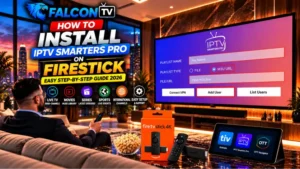
IPTV Smarters Pro is a popular media player that can be used to organize and stream content from a compatible IPTV service. However, installing and configuring the application for the first time can be confusing, especially if you are unfamiliar with FireStick settings or sideloading applications.
In this guide, you will learn how to prepare your FireStick, install Downloader, install IPTV Smarters Pro from a trusted source, open the application, add your authorized IPTV subscription, and troubleshoot common problems.
We will also explain the difference between IPTV Smarters Pro and an IPTV service, how to use Xtream Codes or an M3U playlist, and how to improve streaming performance on your FireStick.
Important: IPTV Smarters Pro is a media player. It does not provide television channels or subscriptions by itself. Only use IPTV services and content that you are authorized to access.
What Is IPTV Smarters Pro?
IPTV Smarters Pro is a media player designed to organize and display compatible streaming content on supported devices.
Instead of providing channels itself, the application allows users to connect a compatible playlist or IPTV service.
Depending on the service connected to the player, you may see categories such as:
Live TV
Movies
TV Series
Sports
News
Video on Demand
International channels
Favorites
The exact content available depends on the IPTV service and playlist you use.
Does IPTV Smarters Pro Provide IPTV Channels?
No.
This is one of the most important things to understand before installing the application.
IPTV Smarters Pro is a media player, not a television provider.
You need a compatible and authorized IPTV subscription or playlist to load content into the application.
Think of it like a video player: the player provides the interface, while the content comes from your chosen source.
Why Use IPTV Smarters Pro on FireStick?
FireStick is convenient for streaming because it connects directly to your television. Using a compatible IPTV player on FireStick can make it easier to organize different types of internet-based content from one interface. The application can also provide a television-friendly interface that is easier to navigate with a remote control.
What You Need Before Installing IPTV Smarters Pro on FireStick
Having these items ready will make the installation much faster.
Check Your Internet Connection
Your FireStick needs a stable internet connection to download the application and stream content.
If your internet connection is unstable, you may experience:
Buffering
Slow loading
Connection errors
Frozen video
Playlist loading problems
It is a good idea to test your internet connection before troubleshooting the IPTV application.
Keep Your IPTV Login Information Ready
Depending on your IPTV service, you may receive:
Username
Password
Server URL
M3U playlist URL
Keep this information available because you will need it when configuring the application.
How to Prepare Your FireStick for IPTV Smarters Pro
Before installing an application from outside the Amazon Appstore, your FireStick may require permission to install applications from an external source. The exact menu names can vary depending on your Fire TV software version.
Step 1: Open FireStick Settings
From the FireStick home screen:
Go to Settings.
Open My Fire TV or Device & Software.
Look for Developer Options.
Fire TV menu names can change after software updates, so your screen may look slightly different.
Step 2: Find Developer Options
If Developer Options are not immediately visible, open the About section and select your Fire TV device several times.
On some versions, this can reveal additional developer settings.
Step 3: Allow Installation From Unknown Sources
Look for an option such as Install Unknown Apps.
Select Downloader and enable permission if your FireStick requires it.
Only install applications from sources that you trust.
How to Install Downloader on FireStick
Downloader is a utility application commonly used to access legitimate application download sources on Fire TV devices.
Step 1: Search for Downloader
From your FireStick home screen:
Select the search icon.
Search for Downloader.
Select the official Downloader application.
Choose Get or Download.
Wait for the installation to finish.
Step 2: Open Downloader
Once Downloader has been installed:
Open it.
Accept any necessary permissions.
Follow the initial instructions.
You should see a field where you can enter a web address.
You can then use the application to access the trusted download source for IPTV Smarters Pro.
How to Install IPTV Smarters Pro on FireStick
Now we can get to the main part of this tutorial. The installation method can vary depending on the Fire TV version and the availability of the application. Always use the official or otherwise trusted distribution source for the application rather than downloading unknown APK files.
Step 1: Open Downloader
Launch Downloader from your FireStick applications. You should see the Downloader home screen with a field for entering a web address.
Step 2: Enter the Trusted Download Address
Enter the legitimate download address for the version of IPTV Smarters Pro that is compatible with your device. Check the address carefully before proceeding. Avoid downloading APK files from suspicious websites because unofficial files can contain unwanted software.
Step 3: Download the Application
After opening the trusted download source, follow the instructions to download the application. The download may take a few moments depending on your internet connection.
Step 4: Install IPTV Smarters Pro
When the download is complete:
Select the downloaded file.
Choose Install.
Wait for the installation process.
Select Done when the installation finishes.
Your IPTV player should now be installed on the FireStick.
Step 5: Delete the Installation File
After the application has been installed successfully, Downloader may give you the option to delete the downloaded installation file. If you no longer need the file, deleting it can help free up storage space.
How to Open IPTV Smarters Pro for the First Time
After installation, open IPTV Smarters Pro from your FireStick applications.
The first screen may ask you to accept terms, provide permissions, or select a login method.
The available options can change depending on the application version.
Accept the Application Terms
If the application displays terms or a privacy notice, read them and continue if you agree.
Choose Your Login Method
Depending on the version, you may see options for adding content through different methods.
Common options include:
Xtream Codes API
M3U playlist
Playlist URL
Choose the option supported by your IPTV provider.
How to Add IPTV Smarters Pro Using Xtream Codes
Xtream Codes is one of the easiest ways to configure a compatible IPTV player when your provider supplies the required information.
Normally, you will need three pieces of information:
Username
Password
Server URL
Step 1: Select Xtream Codes
Open IPTV Smarters Pro and choose the option for adding an account using Xtream Codes or a similar API login method.
Step 2: Enter Your Account Name
You may be asked to create a name for your account.
You can use a simple name such as:
My IPTV
This name is only used to identify the playlist inside the application.
Step 3: Enter Your Username
Enter the username exactly as provided by your IPTV service. Avoid adding spaces before or after the username.
Step 4: Enter Your Password
Enter your password carefully. Passwords can contain letters, numbers, and special characters, so check every character.
Step 5: Enter the Server URL
Enter the server address provided by your IPTV service. Make sure the address is complete. If the server URL is incorrect, the application may fail to connect even when your username and password are correct.
Step 6: Add the Account
After entering all the information, select the button to add or log in to the account. Wait while the application retrieves the available categories.
How to Add an M3U Playlist to IPTV Smarters Pro
Some IPTV services provide an M3U playlist instead of Xtream Codes information. An M3U playlist is a URL containing information that allows a compatible media player to retrieve available streams.
tep 1: Select the M3U Option
Open the playlist section in IPTV Smarters Pro and choose the option for adding an M3U playlist.
Step 2: Enter the Playlist URL
Copy the complete M3U URL provided by your authorized IPTV service. Paste it into the application.
Step 3: Give the Playlist a Name
Choose a name that makes it easy to identify the playlist.
For example:
My Live TV
Step 4: Wait for the Playlist to Load
Large playlists may take some time to load. Do not repeatedly close the application while it is processing the playlist.
What Can You Watch With IPTV Smarters Pro?
IPTV Smarters Pro can organize different types of content depending on the playlist or service connected to it.
Live TV
The Live TV section can organize live television channels into different groups.
Some playlists may organize channels by:
Country
Language
Category
Genre
Sports
News
The categories available depend on your IPTV service.
Movies
If your subscription includes Video on Demand, you may see a Movies section. You can browse available titles and select one to start playback.
TV Series
Some IPTV playlists include TV series. The application can organize episodes and series depending on the information supplied by the content source.
Sports
Sports categories may also be available when included in your authorized subscription. The availability of specific channels and events can change over time.
How to Use IPTV Smarters Pro on FireStick
Once your account has been successfully added, navigating the application is relatively straightforward. Use your FireStick remote to move between menus and select categories.
Navigate the Main Menu
The application may display categories such as:
Live TV
Movies
Series
Catch Up
Favorites
Settings
The exact menu depends on the application version and playlist
Create Favorites
If the application supports favorites, you can save frequently watched channels. This saves time when you have a large playlist.
Search for Channels
Some versions of the application include a search feature. Instead of scrolling through hundreds or thousands of channels, search for a specific channel or title when the feature is available.
How to Improve IPTV Smarters Pro Performance on FireStick
Installing the application correctly is only part of getting a good streaming experience. Your FireStick, internet connection, application, and IPTV source can all affect performance
Restart Your FireStick
If IPTV Smarters Pro becomes slow or stops responding, restart your FireStick. A simple restart can clear temporary system issues.
Restart Your Router
Turn your router off for a few minutes and then turn it back on. After your internet connection returns, test IPTV Smarters Pro again.
Clear the Application Cache
If the application becomes slow, clearing its cache may help.
The exact menu names can differ between Fire TV versions.
Free Up FireStick Storage
A FireStick with very little available storage may become slower. Remove applications you no longer use and delete unnecessary downloaded files.
Use a Stable Wi-Fi Connection
Keep your FireStick within a reasonable range of your router. If possible, reduce interference between the FireStick and router. For supported setups, an Ethernet connection can provide a more consistent network connection.
Common IPTV Smarters Pro Problems on FireStick
Even after you successfully install IPTV Smarters Pro on FireStick, you may encounter occasional problems. Here are some common solutions
IPTV Smarters Pro Is Not Opening
If the application does not open:
Close the application.
Restart your FireStick.
Clear the application cache.
Check for an available application update.
Open the application again.
If the problem continues, reinstalling the application from a trusted source may help.
IPTV Smarters Pro Is Not Loading the Playlist
If your playlist does not load, check your credentials first.
Make sure:
Username is correct
Password is correct
Server URL is correct
Subscription is active
Internet connection is working
If all information is correct, the issue may be related to the IPTV service or playlist
IPTV Smarters Pro Says Login Failed
A login failure is often caused by incorrect credentials. Check every character in your username and password. If you recently received updated credentials from your IPTV provider, use the newest information.
Channels Are Buffering
Buffering does not always mean that the application itself is broken.
Check your internet connection first.
Then restart:
FireStick
Router
IPTV Smarters Pro
You can also test another channel to determine whether the problem affects one stream or the entire playlist.
Some Channels Are Missing
If only certain channels are missing, the playlist may have been updated. Contact your IPTV provider and ask whether the channels are still available. Do not assume that reinstalling the application will automatically restore channels that are no longer included in the playlist.
IPTV Smarters Pro Keeps Freezing
Try clearing the cache and restarting the FireStick. Also make sure that your device has enough available storage. If the issue happens only with IPTV Smarters Pro while other applications work normally, reinstalling the application may be worth trying.
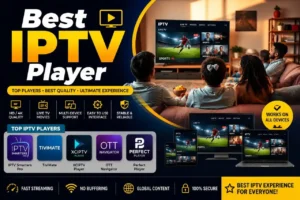
IPTV Smarters Pro vs. Other IPTV Players
There are many IPTV players available for FireStick. Your choice depends on your preferred interface and the features you need.
IPTV Smarters Pro
IPTV Smarters Pro focuses on providing a simple interface for organizing compatible IPTV content. It can be useful for users who want access to live TV, movies, series, and other playlist categories through one application.
TiviMate
TiviMate is another popular IPTV player designed with television devices in mind.
If you want to use TiviMate instead, you can read our dedicated guide:
How to Install TiviMate on FireStick
This gives your website a natural internal link between two closely related but different articles.
Which IPTV Player Should You Choose?
There is no universal answer.
Choose an application that:
Works with your FireStick
Supports your playlist format
Has an interface you understand
Is maintained by a trusted developer
Meets your viewing requirements
How to Update IPTV Smarters Pro on FireStick
Keeping applications updated can help with compatibility and performance.
When a trusted official update is available:
Check the application’s official distribution source.
Download the compatible version.
Install the update.
Open the application.
Check whether your existing account or playlist is still available.
Always be careful when installing updates from third-party websites.
Avoid modified APK files from unknown sources
How FalconTV Can Help With IPTV Smarters Pro Setup
Our support team can assist with general installation steps, IPTV application configuration, playlist setup, Xtream Codes information, and common connection problems.
FalconTV also offers afree trial, so you can test the service on your compatible device before choosing a subscription.
If you already have IPTV Smarters Pro installed but your playlist is not loading, contact the support team and provide the information needed to identify the problem.
The goal is to make the setup process as simple as possible, especially for users who are installing an IPTV application for the first time.
IPTV Smarters Pro is a media player. The legality of what you watch through any IPTV application depends on the content and whether you have authorization to access it.
The Difference Between the Player and the Content
Installing a media player does not automatically give you access to copyrighted television channels or movies. The player is simply the software used to display compatible content.
Use Authorized IPTV Content
Always use IPTV services and playlists that you are legally authorized to access. If you are unsure about the legality of a particular service, check the applicable laws and regulations in your country.
Frequently Asked Questions About IPTV Smarters Pro on FireStick
Can I install IPTV Smarters Pro on FireStick?
Yes, compatible versions of IPTV Smarters Pro can be used on supported Fire TV devices. The exact installation method depends on the Fire TV software and the application’s current distribution options.
Is IPTV Smarters Pro free?
The availability and features of the application can vary depending on the version and platform. An IPTV player should also be distinguished from the IPTV service itself, which may require a separate subscription.
Does IPTV Smarters Pro come with channels?
No. IPTV Smarters Pro is a media player. It does not automatically provide television channels. You need a compatible IPTV service or playlist that you are authorized to use.
How do I install IPTV Smarters Pro on my FireStick?
The general process is to prepare your FireStick, install Downloader if required, obtain the application from a trusted source, install it, and then add your IPTV account using a supported login method
Why is IPTV Smarters Pro not loading my playlist?
Check your username, password, server URL, subscription status, and internet connection. If all information is correct, contact your IPTV provider to determine whether there is an issue with the playlist or server.
Why does IPTV Smarters Pro keep buffering?
Buffering can be caused by an unstable internet connection, Wi-Fi interference, device performance, application problems, or issues with a particular stream. Try restarting your FireStick and router and test other channels.
Can I use IPTV Smarters Pro on more than one device?
That depends on the terms of your IPTV subscription and the application’s compatibility. Some services allow multiple devices, while others limit simultaneous connections. Always check the terms of your subscription.
Do I need Downloader to install IPTV Smarters Pro?
Not necessarily. The installation method depends on how the application is currently distributed and whether it is available through the Amazon Appstore or another trusted source.
Quick Setup Checklist for IPTV Smarters Pro
Before you finish, use this checklist to make sure everything is configured correctly:
✓ FireStick connected to the internet
✓ Developer settings configured when necessary
✓ Downloader installed if required
✓ IPTV Smarters Pro installed from a trusted source
✓ IPTV username entered correctly
✓ IPTV password entered correctly
✓ Server URL entered correctly
✓ Playlist successfully loaded
✓ Live TV tested
✓ Movies or VOD tested if included
✓ Internet connection checked
If everything above is working, your basic setup is complete.
Your FireStick provides the hardware, IPTV Smarters Pro provides the media-player interface, and your authorized IPTV service or playlist provides the content.
The most important steps are preparing your FireStick, installing the application from a trusted source, entering your IPTV credentials correctly, and allowing the playlist enough time to load.
If you experience problems, start with the basics: check your internet connection, verify your username and password, confirm the server URL, restart your FireStick and router, and clear the application’s cache.
For users who need additional assistance, FalconTV can help with general IPTV setup and configuration, and its free trial gives you an opportunity to test the service on your compatible device before choosing a subscription.
With the right setup and a stable connection, IPTV Smarters Pro can provide a convenient interface for managing compatible live TV, movies, series, and other streaming content on your FireStick.
We use cookies to ensure that we give you the best experience on our website. If you continue to use this site we will assume that you are happy with it.